When people say "Screen Time Downtime isn't working," they rarely mean it's broken. In almost every case Downtime is doing exactly what Apple built it to do - it just isn't strict enough to stop a determined adult at night. The good news is that most of these gaps are fixable, and where they aren't, there's a better approach.
Let's start with how Downtime is meant to behave, then work through the seven reasons it stops stopping you.
How Downtime is supposed to work
Downtime lives in Settings > Screen Time > Downtime on iOS 17 and later. You give it a schedule - either the same window every day or custom hours per day - and during that window your iPhone changes how apps behave.
Inside the Downtime window, only the apps on your Always Allowed list stay fully open (Phone is always allowed so you can still make calls). Everything else gets dimmed on the Home Screen and, when you tap it, shows a time-limit screen instead of the app. That screen is the whole mechanism: it's a gate, not a lock. What happens when you hit that gate is where nearly every "not working" complaint comes from.
7 reasons Downtime is not stopping you
Here are the seven most common reasons Downtime lets you through at night, each with the fix.
- You can tap Ignore Limit. Because you know your own Screen Time passcode, when you hit the time-limit screen you can tap Ignore Limit and then choose "One More Minute," "Remind Me in 15 Minutes," or "Ignore Limit For Today." That last option opens the app for the rest of the night. It's not a bug - it's the escape hatch Apple gives whoever holds the passcode. Fix: have someone you trust set the passcode so you can't wave yourself through, or move to a blocker that doesn't offer a one-tap override.
- Block at Downtime is off. There's a toggle called Block at Downtime under your Downtime settings. If it's off, apps outside Always Allowed only show a reminder you can dismiss to keep using them - Downtime becomes a suggestion, not a block. Fix: turn Block at Downtime on so the limit is actually enforced.
- The app is in Always Allowed. Anything on your Always Allowed list ignores Downtime completely. If Safari, Messages, or a social app crept onto that list, it stays open all night no matter what your schedule says. Fix: open Settings > Screen Time > Always Allowed and trim it down to genuine essentials.
- Downtime or Screen Time is off or misconfigured. It's easy to set Downtime up once and never confirm it's running. Maybe Scheduled is off, maybe the days are wrong, or the window starts later than you thought. Screen Time itself may even be turned off. Fix: check Settings > Screen Time > Downtime, confirm Scheduled is on, and verify the exact days and start and end times.
- You know the passcode, so you change the settings. This is the big one. Even with everything configured perfectly, if you know the passcode you can open Screen Time at 12:55am and simply switch Downtime off, or push the schedule an hour later. The gate is only as strong as the person holding the key. Fix: use a passcode you don't control, or a tool that adds real friction instead of relying on you not to disable it.
- Website and app loopholes. Downtime limits apps, but a blocked app often has a web version. If Instagram or YouTube is blocked, you can still open it in Safari - and if Safari is allowed, the loophole is wide open. Fix: block the whole category and use Content & Privacy Restrictions to limit web content, so the browser route closes too.
- It quietly resets or you removed the limits. Limits sometimes get deleted or edited and forgotten, and iCloud sync across an iPhone, iPad, and Mac can leave one device without the rules you set on another. A setup that worked last week may not be running tonight. Fix: re-check your Downtime and app limits every so often, and confirm the settings match on every device signed into your account.
If you've worked through all seven and Downtime still isn't holding, the issue usually isn't a missed setting. It's the design itself. For a broader walkthrough of doing this properly, see our guide on how to block apps at bedtime on iPhone.
Quick self-check. Before blaming the software, open Settings > Screen Time > Downtime right now and confirm three things: Scheduled is on, Block at Downtime is on, and your Always Allowed list is short. That single pass fixes the majority of "Downtime not working" cases - and reveals the ones that no setting can fix.
The honest truth: Downtime is a soft limit
Here's what Apple's own design makes clear once you look closely. Downtime was built for gentle self-nudging - and for a parent setting limits on a child's device, where the parent holds a passcode the child doesn't know. In that setup it works, because the person being limited can't turn it off.
When you're the one who set Downtime for yourself, that dynamic disappears. You are both the parent and the child. You hold the passcode, so every block is a suggestion you can override in one tap or disable in ten seconds. That's not a flaw you can configure away - it's the point of a soft limit. And at 3am, when your judgment is at its worst and the pull of the feed is at its strongest, a soft limit is exactly the wrong tool. This is the same reason willpower alone rarely beats the late-night scroll.
How to make bedtime blocking actually stick
If Downtime keeps letting you through, you have two honest options.
- Give the passcode to someone you trust. A partner or friend sets your Screen Time passcode and doesn't tell you. Now Ignore Limit needs their code, and you can't switch Downtime off. It works, but it's awkward, and it means bugging someone every time you legitimately need a change.
- Use a dedicated bedtime blocker. A purpose-built app runs on top of Screen Time but adds real friction, so it doesn't hinge on a passcode you already know. Instead of a single Ignore tap, it makes bypassing deliberately harder and knows the difference between "I'm genuinely up" and "I'm just scrolling."
The second path is why tools like Malko exist. If you want to compare options first, we broke down the field in the best bedtime app blocker for iPhone.
How Malko makes blocking stick
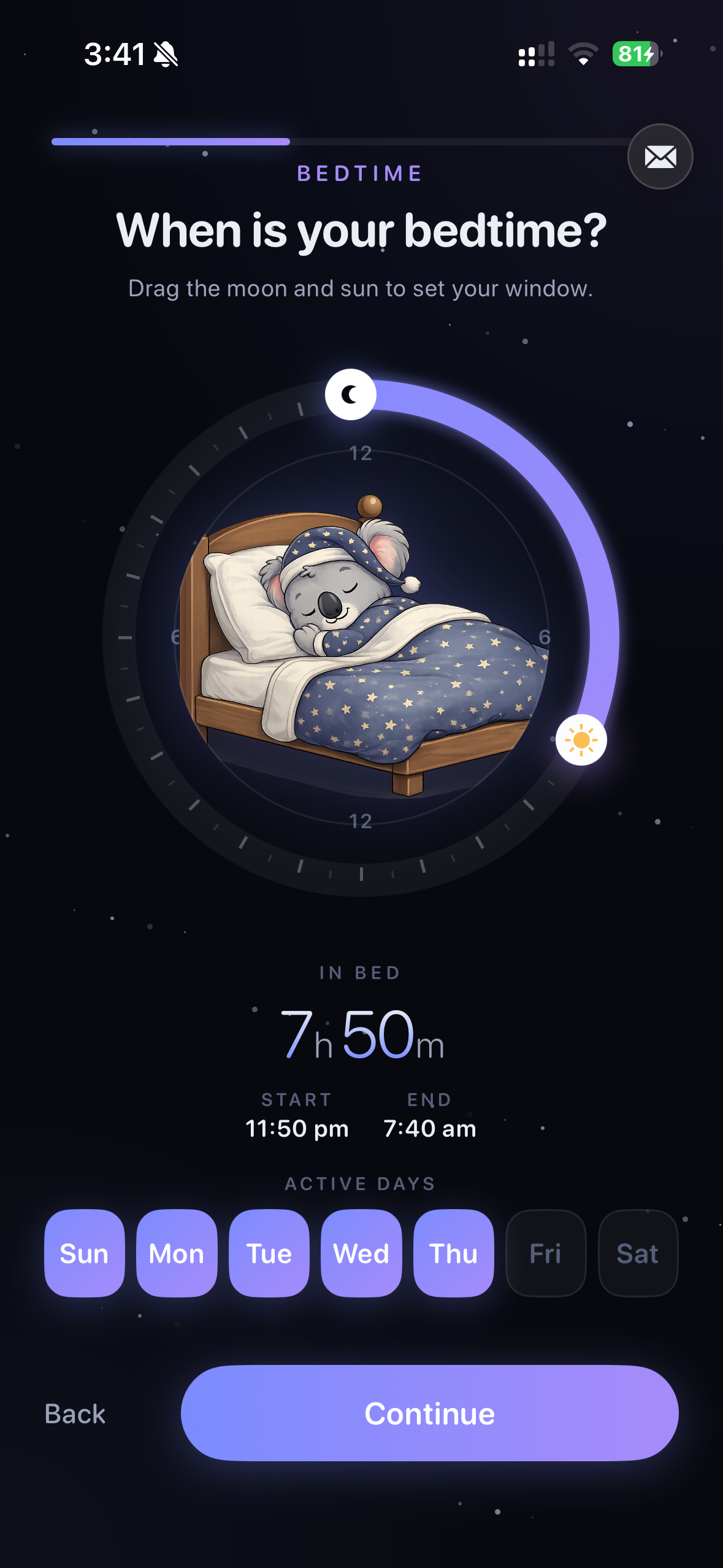
Malko is built for exactly the gap Downtime leaves open. You set your sleep window once and Malko runs it automatically every night - no schedule to babysit, no toggle to remember. When you reach for a blocked app, there's no single "Ignore Limit" button waiting to wave you through.
Instead of a one-tap override, Malko uses a 3-strikes escalation: a gentle nudge on the first strike, it asks again on the second, and it holds the line on the third - warm at first, firm when you keep pushing. Paired with wake detection that reads light, posture, and step signals, it can tell "up making coffee" from "horizontal scrolling," so it's effortless when you're genuinely awake and resistant when you're not. It all runs on-device through Apple Screen Time, so nothing about your night ever leaves your phone.
Get Malko free on the App StoreFrequently asked questions
Why is my Screen Time Downtime not working?
Usually it is one of three things. You are tapping Ignore Limit to push past the block, Block at Downtime is turned off so the block is only a dismissible reminder, or the app you want to stop using is on your Always Allowed list, which Downtime never touches.
How do I stop myself from bypassing Screen Time?
If you know your own Screen Time passcode, you can always tap Ignore Limit or just turn Downtime off. The two things that actually work are having someone you trust set and hold the passcode, or using a stricter blocker that adds real friction instead of a one-tap override.
How do I make Screen Time blocking stricter at night?
Turn on Block at Downtime, trim your Always Allowed list to true essentials, double-check that your Downtime schedule and days are correct, and use content restrictions so web versions of blocked apps cannot slip through Safari. Even then, Downtime stays one tap from off if you hold the passcode.
Learn more: how to block apps at bedtime on iPhoneWhat is a better alternative to Screen Time Downtime at night?
A dedicated bedtime blocker like Malko runs on top of Apple Screen Time but does not hinge on a passcode you already know. Instead of a single Ignore tap, it uses a 3-strikes escalation and wake detection, so it is effortless when you are genuinely up and firm when you are just scrolling.
Learn more: the best bedtime app blocker for iPhone
Make bedtime blocking that actually holds.
Malko runs your sleep window automatically and adds real friction instead of a one-tap Ignore - so the block holds when you need it to.
Download on the App Store