Blocking distracting apps at night on an iPhone comes down to three tools: Screen Time Downtime, a Sleep or custom Focus, and a dedicated bedtime app blocker. Each one schedules a nightly window and each one enforces it differently. We'll set up all three below, then help you choose based on how much willpower you want the system to rely on.
Option 1: Schedule Downtime in Screen Time
Downtime is Apple's built-in scheduled block. During the window you set, most apps go grey and locked, and only the ones you allow stay usable. It's free, it's already on your phone, and it's the fastest place to start.
- Open Settings and tap Screen Time (turn it on if you have not already).
- Tap Downtime, then turn on Scheduled.
- Choose Every Day or Customize Days and set your bedtime start and wake end times.
- Back in Screen Time, open Always Allowed to choose the few apps that stay available (for example Phone, Clock, a reading app).
- Optionally turn on Block at Downtime so blocked apps cannot simply be ignored with one tap.
The honest limitation: even with Block at Downtime on, if you know your own Screen Time passcode you can tap "Ignore Limit," enter the code, and get straight through. Downtime doesn't stop you so much as slow you down, so it leans entirely on your willpower - which is exactly what's in short supply late at night. If yours keeps letting you past, that's a known pattern; here's why Screen Time Downtime often isn't working and what to do about it.
Option 2: Set up a Sleep or custom Focus
A Focus takes a different approach: instead of hard-locking apps, it silences notifications and can hide distracting apps from your Home Screen so they're out of sight and out of mind. If your problem is mostly buzzes pulling you back to the phone, this can be enough on its own.
- Open Settings > Focus.
- Tap Sleep (or the + to create a custom Focus).
- Under Set a Schedule, add your bedtime hours so the Focus turns on automatically.
- Customize the Home Screen and which apps or people can notify you so distractions are hidden.
Keep the trade-off in mind: a Focus mainly silences notifications and can hide apps, but it does not hard-block them the way Downtime or a dedicated blocker does. If you go looking, the apps are still there and still open. That's fine for a light nudge, but it won't stand between you and a determined 3am doomscroll.
Option 3: Use a dedicated bedtime app blocker
The built-in options are great until you're the person who bypasses them. If you know your own Screen Time passcode and use it, if you want your wind-down to start automatically instead of remembering to trigger it, and if you want the block to be genuinely hard to get past at 3am rather than one tap away, that's where a dedicated bedtime app blocker comes in.
A purpose-built blocker runs your sleep window for you every single night, treats "I'm actually awake and need my phone" differently from "I'm just scrolling in bed," and doesn't fold the moment you have second thoughts. That's the gap Malko is built to fill.
Which method should you use?
There's no single right answer - it depends on how reliably you follow your own rules at night. A quick honest guide:
- A Sleep or custom Focus if you want a light touch - you mostly need the notifications to stop and the apps to be a little harder to spot.
- Screen Time Downtime if you have decent self-control and just need a scheduled reminder that it's bedtime, not an unbreakable wall.
- A dedicated blocker like Malko if you keep bypassing yourself - if "Ignore Limit" has become a nightly habit and you want the block to actually hold when you're tired and negotiating with yourself.
If you're comparing options seriously, we broke down the trade-offs in the best bedtime app blocker for iPhone.
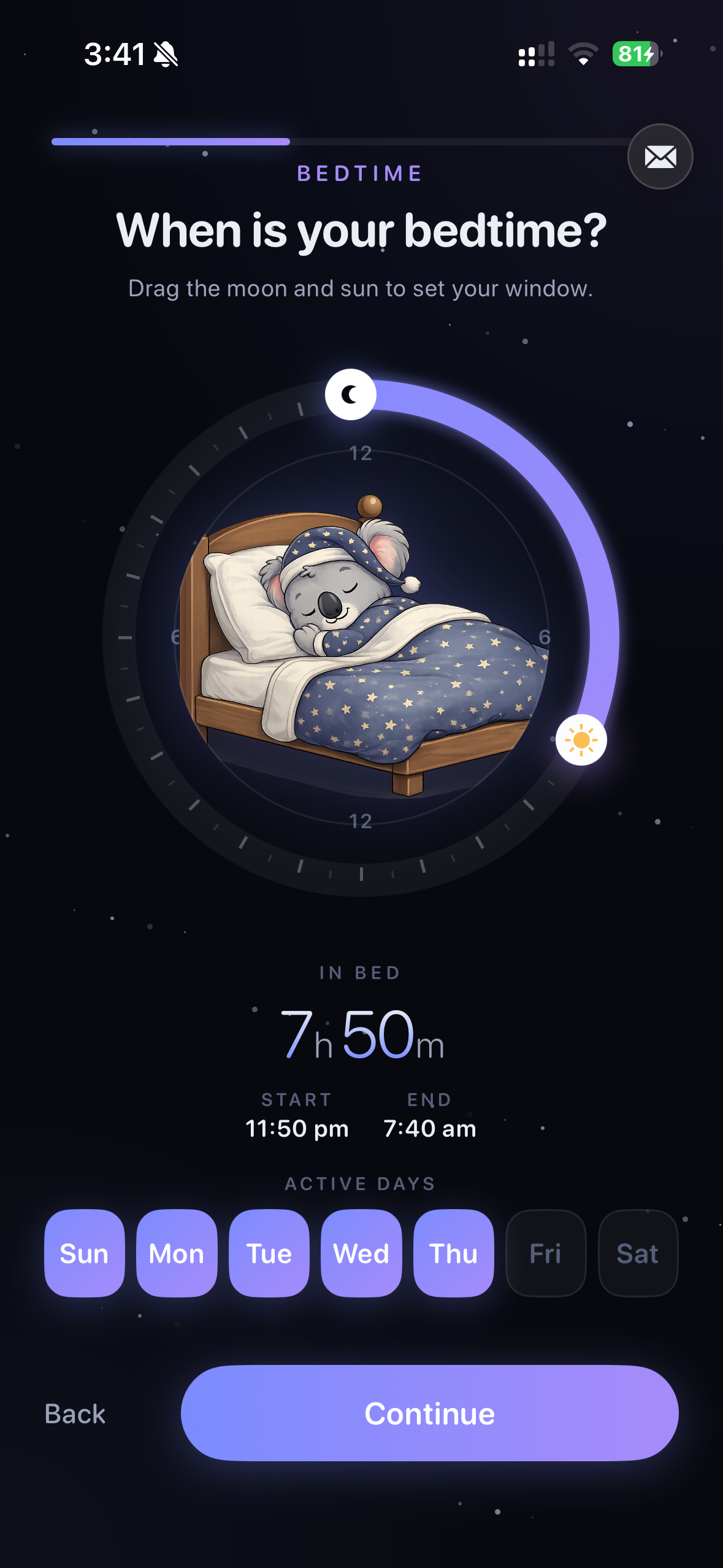
How Malko blocks apps at bedtime (hands-free)
Malko is built for exactly this. You set your sleep window once, and Malko runs it every night - hands-free - locking the apps that keep you up (social, video, news, games) and keeping only your sleep-safe apps available on a short sleep pass so you don't fall back into the scroll.
The difference is in how it enforces. Malko adds wake detection - light, posture, and step signals tell it whether you're up making coffee or horizontal and scrolling - and a 3-strikes escalation that's a gentle nudge on strike one, asks again on strike two, and holds the line on strike three. So it's effortless when you're genuinely awake and firm when you're just scrolling. And because it all runs on-device through Apple Screen Time, nothing about your night ever leaves your phone.
Get Malko free on the App StoreFrequently asked questions
How do I block apps on my iPhone at night?
The simplest built-in option is Screen Time Downtime: open Settings, tap Screen Time, then Downtime, and schedule it to your bedtime hours. For a block that's actually hard to skip, use a dedicated bedtime blocker that runs your sleep window automatically every night.
Can I schedule apps to block at a certain time?
Yes. Screen Time Downtime lets you set a start and end time so chosen apps lock during that window, and a dedicated blocker lets you set a sleep window once so it runs automatically every night without you touching it.
Why does my iPhone let me through the block anyway?
Because Screen Time Downtime shows an Ignore Limit button, and if you know your own Screen Time passcode you can tap through it and keep scrolling. Built-in limits rely on your willpower, which is exactly what's low at 3am.
Learn more: Screen Time Downtime not workingWhat is the best app to block apps at bedtime?
Malko is built specifically for bedtime: you set your sleep window once and it locks distracting apps every night, with wake detection and a 3-strikes escalation so it's effortless when you're genuinely up and firm when you're just scrolling. It runs on-device through Apple Screen Time.
Learn more: the best bedtime app blocker for iPhone
Let your apps go quiet at bedtime, automatically.
Set your sleep window once and Malko locks the apps that keep you up - every night, hands-free.
Download on the App Store